Introduction:The table is created as a sequence of rows. Setting a row’s attributes affects all cells in that row. But if you want to change the properties of a particular column you have to set the property for each <td> element in a row of that column which is very tedious. So to effect each cell of a particular column in a single row, we use the <colgroup> and <cols> elements. These elements are used to create some advanced features like grouping columns, sharing attributes between aggregate columns, partitioning the table into multiple partitions, etc. What is <colsgroup> tag?HTML <colgroup> tag specifies group of column within an HTML table. It is used a parent container of one or more <col> elements to apply different properties in an HTML table. The <colgroup> element is always in the <table> element and usually before the first row definition. The starting tag <colgroup> is essential but the ending tag </colgroup> is optional. By using colgroup> element you can apply formatting to group of columns instead of applying formatting to each column separately. NOTE: The <colgroup> tag must be used with <table> element after the <caption> and before <thead> or <tbody> elements.What is <cols> tag?Like <colgroup> element, the <col> element or tag is also used for formatting columns. This element is always used inside the <colgroup> element. It is an empty element as it contains no contents but only the attributes used for formatting purpose. It is usually used when you need to format columns in the middle differently from the rest of the columns. The attributes that can be used with <cols> element are the same as that of <colsgroup> element. SyntaxFollowing are some specifications about the HTML <colgroup> tag
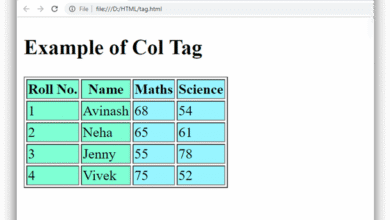
Now, let us consider an example of a <colsgroup> element in a table containing 3 columns. ExampleOutput:
In order to change the properties of a particular column, a list of attributes are available that can use with <colgroup> element. These are generally written as: Syntax Following are the various attributes available:
Global AttributeHTML <colgroup> tag supports all Global attributes in HTML. Event AttributeHTML <colgroup> tag supports all event attributes in HTML. Supporting Browsers
Next TopicHTML data Tag
|

 Chrome
 IE
IE Firefox
 Opera
Opera Safari